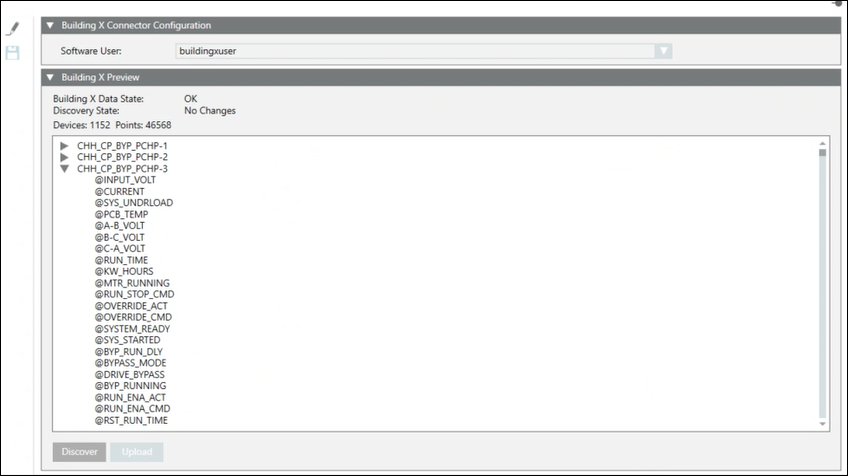
Select Project> Management System > Servers > Main Server > Building X Connector.
Select the Building X Connector tab.
Click Edit.
For Software User, click the drop-down arrow, and then select the user you created earlier—for example, Building X User.
Click Save.
After several seconds, the Operational State displays Ready.
In the Extended Operations tab, from Current Export Operation, select Export to generate an export file.
In the Building X Connector tab, expand Building X Preview.
Click Discover. NOTE: This button is enabled when the export has completed and the Operational State is Ready.
An expandable list of devices and data points, along with a count of devices and data points, displays in the Building X Preview expander.
Verify that the listed devices and points are what you expected.
Click Upload, and then click OK. NOTE: the upload button is disabled if Desigo CC and Building X are aligned (have no differences).
The system uploads all devices and points in the preview area to Building X.
Using a Building X application—for example, Operations Manager—verify that devices and points uploaded. NOTE: You will need access to a Building X application and its documentation.
In the Building X application—for example, Operations Manager—you can now monitor the current values and start commanding.
 .
. .
.